
Inflated Shopify Facebook Pixel Data? The Definitive Fix for Purchases Exceeding Real Orders
Have you hit the problem that plagues countless Shopify cross-border sellers: the Shopify admin shows 10 orders today, but Facebook Ads Manager displays 15 — even 20 — Purchase conversions? Why does the pixel data stay stubbornly "inflated"?
This isn't just a numeric discrepancy. It skews your ROAS calculations, blinds your judgment of ad performance, and can trick you into scaling budget on false "good news" — burning real money. It feels like flying a plane through fog.
Don't worry. As an SEO and ads-optimization specialist focused on Shopify, I'll dissect the root causes and give you a definitive fix.
(Planning to open a Shopify store? Tutorial here ➡️ Shopify tutorial, or register directly.)
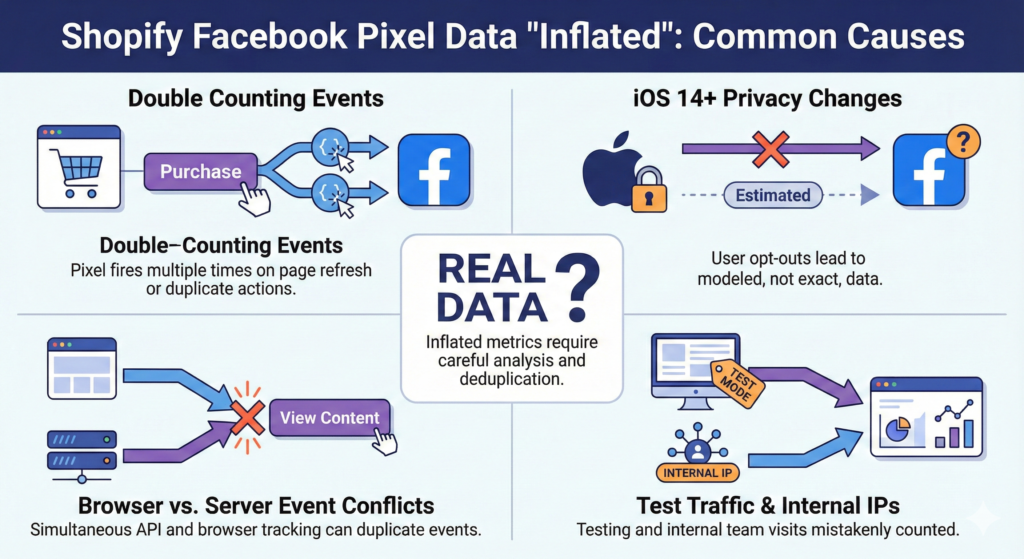
Is the pixel "lying"?
Before the fix, understand the core causes. They usually stack rather than appear alone.
Cause 1: customers refreshing the Thank You page — the most common culprit
The most widespread and most overlooked cause. After purchase, the customer lands on the order confirmation — the "Thank You page". Standard pixel logic: every load of the Thank You page fires a Purchase event to Facebook.
- Customers refresh the page to check order status.
- Customers bookmark it to track shipping later — every visit fires the pixel.
- Browsers restoring the last session can reload the page too.
Every refresh reports like a fresh purchase, inflating the numbers badly.
Cause 2: theme or app code conflicts firing the pixel twice
Some Shopify themes or third-party apps have flawed implementations that execute the pixel send twice or more on the Thank You page. Rare, but brutal to debug — especially for non-technical sellers.
Cause 3: attribution window differences
A concept to keep separate. Facebook's attribution model (e.g. 7-day click / 1-day view) differs completely from Shopify's (typically last click). Facebook claims more indirect, multi-channel conversions for itself.
Note: this causes a long-horizon "difference" between totals — it does not produce same-day "errors" like 10 orders reported as 20. Today we're fixing the duplicate-fire error.
The definitive fix: fire the pixel only on first completion
The core problem is duplicate firing, so the solution is clear: ensure the Purchase event code executes exactly once per successful checkout.
Shopify's checkout exposes JavaScript variables we can use to build a precise guard. Steps:
Step 1: remove old, redundant code
Check whether you've manually added pixel code before. Path: Online Store -> Preferences -> Facebook Pixel — this should contain only your pixel ID. Also check the theme code (especially theme.liquid) for hand-written pixel snippets; remove them to avoid conflicts.
Step 2: add a dedupe script to the Order Status page
The critical step: plant a duplicate-prevention script in a specific spot.
- In Shopify admin, open Settings (bottom left).
- Choose Checkout.
- Find the Order status page section and its Additional scripts box.
- Paste this in full:
<script>
if (Shopify.checkout && Shopify.checkout.order_id) {
  (function() {
    var executed = sessionStorage.getItem('fb_purchase_executed_' + Shopify.checkout.order_id);
    if (!executed) {
      // place your Facebook Pixel Purchase event code here
      fbq('track', 'Purchase', {value: Shopify.checkout.total_price, currency: Shopify.checkout.currency});

      sessionStorage.setItem('fb_purchase_executed_' + Shopify.checkout.order_id, 'true');
    }
  })();
}
</script>
How it works:
if (Shopify.checkout && Shopify.checkout.order_id): ensures the code only runs on the post-checkout page with an order ID available.sessionStorage.getItem(...)/sessionStorage.setItem(...): the core logic. On first fire, it stores a marker keyed by order ID (e.g.fb_purchase_executed_12345).if (!executed): on refresh or revisit, the marker already exists, the condition fails, andfbq('track', 'Purchase', ...)never runs again — perfectly preventing duplicates.
However many times the customer refreshes, the Purchase event sends once.
Note: if you track additional custom events, put them inside the same if (!executed) { ... } block.
If editing code makes you nervous, or you want one-stop tracking including CAPI (Conversions API), mature pixel-tracking apps exist that handle it all with one-click installs — no code required.
Pitfalls and best practices
- Use Facebook's Test Events tool: after the change, run a real checkout via Events Manager's Test Events and verify Purchase fires exactly once.
- Understand CAPI: browser pixels suffer from extensions, network issues and iOS privacy policies. Server-side tracking via the Conversions API is the more stable, reliable path — it works alongside the pixel to backfill lost data.
- Audit regularly: compare Shopify order counts against Facebook Purchase conversions weekly. If big gaps reappear, investigate promptly.
FAQ
Isn't Shopify's official Facebook & Instagram app enough? Why the extra work?
The official app greatly simplifies basic pixel installation and catalog sync. But for this specific user-behavior problem — Thank-You-page duplicate fires — the default integration doesn't apply the strictest dedupe. Our snippet is a precise "patch" that guarantees accuracy.
Will the code slow my site down?
Not at all. It's a lightweight script loaded only on the final checkout page — effectively zero impact on store speed, and it executes very efficiently.
Will my Facebook data become accurate immediately?
Yes — from the moment you save, every new order tracks under the new logic. Note it won't retroactively correct historical errors; base your strategy on the post-fix data.