
Shopify Cross-Border Payments: How to Enable Local-Currency Checkout for Specific Countries (e.g. the UAE)
Setting up local-currency payment on Shopify is a perennial headache. "Why is my store's bounce rate so high?" "Why do customers run at the payment page?" — soul-searching questions most cross-border sellers eventually face. Entering a new market, you polish the ads, the product pages, the logistics — and fall at the final hurdle: payment. A hot thread in Shopify's official community captured the problem precisely; using it as our starting point, let's dig into the cause and the definitive solution.
(Planning to open a Shopify store? Tutorial here ➡️ Shopify tutorial, or register directly.)
The backstory: a UK seller's Middle East payment dilemma
A real case: a UK Shopify seller expanding into the UAE. His store runs Shopify Payments with GBP as base currency. UAE customers see prices auto-converted to dirhams (AED) via Shopify Markets — but at checkout they're forced to pay in GBP.
Three fatal consequences:
- Terrible customer experience: customers have no idea how many dirhams they'll actually pay — uncertainty and distrust.
- Steep hidden costs: the customer's bank charges currency-conversion and cross-border fees; the "surprise" charge breeds complaints and chargebacks.
- Soaring cart abandonment: faced with confusing conversion and unknown fees, many abandon at the last second.
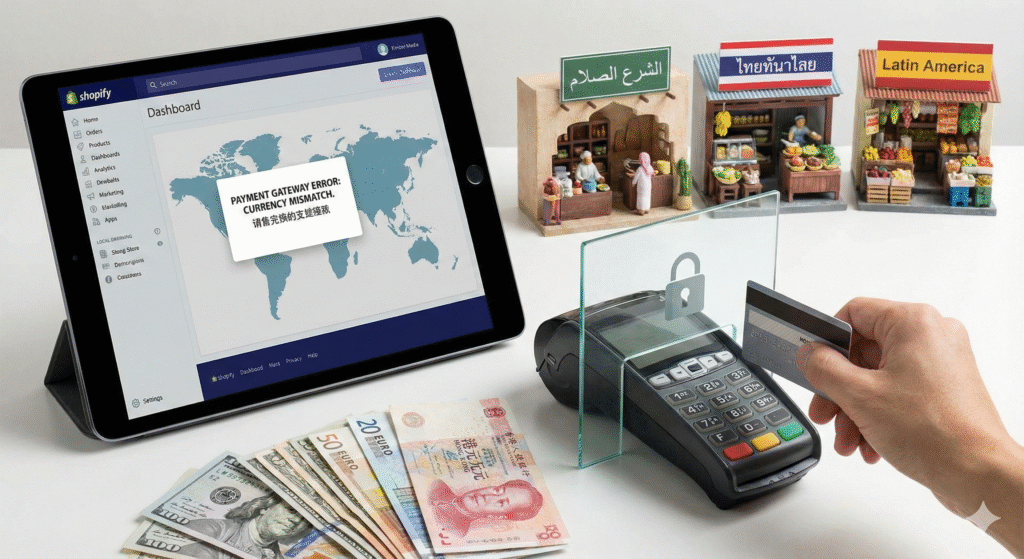
That UK seller's dilemma mirrors every Chinese seller expanding beyond their base currency — whether your store runs USD, HKD or EUR, pushing into the Middle East, Southeast Asia or Latin America hits the same payment wall.
The root cause: Shopify Payments isn't a master key
Many sellers assume that enabling Shopify Markets lets every country pay in local currency. The truth: Markets handles the display of local currency, but the money is processed by your payment gateway.
The culprit is Shopify Payments. Stripe-powered and convenient, yes — but it keeps a strict whitelist of which currencies a store in a given country can process. In our example, a UK Shopify Payments account simply doesn't include AED in its processable list.
So even with Markets displaying perfect AED prices, at checkout Shopify Payments shrugs: "Sorry, I don't recognize that currency — pay in GBP."
That's the heart of it: a capability mismatch between front-end display (Markets) and back-end processing (the gateway).
How to set up local-currency payment
With the cause clear, so is the solution: enable a third-party gateway that can process the target market's currency — like opening a dedicated cashier window for that region.
Step 1: create and isolate the target market in Shopify Markets
The foundation for everything else.
- Shopify admin -> Settings -> Markets.
- Create a new market — say "Middle East" — and add the United Arab Emirates.
- In that market's settings, enable AED. Visitors from UAE IPs now see AED pricing.
Step 2: find and apply for a gateway that supports the target currency
The critical step. You need providers that explicitly support both your store's country AND the target currency. For AED, the community favorites:
- Checkout.com: mainstream international gateway, very friendly to the Middle East.
- 2Checkout (now Verifone): veteran provider with wide coverage — a common backup for cross-border sellers.
- Stripe (standalone account): not Shopify Payments — a merchant account applied for directly at Stripe. Standalone Stripe typically supports more currencies than Shopify Payments.
Register on the provider's site and clear KYC so your account can accept AED.
Step 3: activate the gateway for that specific market
With the account ready, configure Shopify:
- Admin -> Settings -> Payments.
- Under Supported payment methods, click Add payment methods.
- Search by provider name (e.g. "Checkout.com") and activate with your API keys.
- The most important step: return to Markets -> your "Middle East" market -> Payments tab. There you can enable Checkout.com for this market specifically — and disable Shopify Payments (which doesn't support AED).
Once configured, UAE customers get routed to Checkout.com at checkout, and the whole flow completes in AED — silky smooth.
Pro tip: juggling multiple emerging markets means multiple gateways, complex pricing rules and shipping strategies — manual configuration gets tedious and error-prone. Consider a dedicated markets-management app to simplify it.
Pitfalls to know before you start
- Fee structure: third-party gateways mean two fees — the gateway's own transaction fee (typically 2.9%–3.5%) plus Shopify's platform transaction fee (0.5%–2% depending on plan). Price these into your costs. Only Shopify Plus waives the platform fee.
- Settlement and payouts: learn the gateway's settlement cycle and payout rules. Do they settle in AED or auto-convert to your base currency? It affects cash flow and FX risk.
- Test thoroughly: after configuring, use a VPN with a target-country IP and simulate the full browse-to-payment journey to confirm the flow.
FAQ
Can I set different payment methods for different countries?
Yes — that's a core feature of Shopify Markets. Configure each market's payments separately: US customers on Shopify Payments, Europe on Klarna, Middle East on Checkout.com — maximizing the local payment experience.
What's the difference between Shopify Payments and a standalone Stripe account?
Shopify Payments is the deeply integrated "official version" of Stripe — easy to enable, seamless in the admin, but limited in features and currencies. A standalone Stripe account is more powerful, supporting more business models and currencies, but you manage it separately and wire up the Shopify integration yourself.
Would Shopify Markets Pro solve this?
Markets Pro is the premium "hands-off" solution: it acts as your Merchant of Record, handling payments, duties and local taxes across target markets. It does solve local-currency payment — at higher cost. Suited to mature sellers who'd rather hand payments and taxes entirely to Shopify.
FAQ
- Why do customers see local prices but get forced back to my base currency at checkout?
- Shopify Markets only displays local currency — the payment gateway is what actually processes the money. Shopify Payments keeps a strict whitelist of currencies per store country (a UK account cannot process AED, for example), so however nicely Markets renders the price, checkout falls back to your base currency. It is a mismatch between front-end display and back-end processing.
- How do I enable local-currency payment for a specific country?
- Three steps — create the target market under Settings then Markets and enable the local currency; register and pass KYC with a third-party gateway that supports it (Checkout.com, 2Checkout/Verifone, or a standalone Stripe account); then add that gateway under Settings then Payments and enable it just for that market in its Payments tab, optionally disabling Shopify Payments there.
- What extra costs come with a third-party gateway?
- Two fees — the gateway's own transaction fee of roughly 2.9% to 3.5%, plus Shopify's platform transaction fee of 0.5% to 2% depending on your plan (only Shopify Plus waives it). Price them in, and check whether settlement happens in the local currency or auto-converts, since that shapes your FX risk.
- Can different countries get different payment methods?
- Yes — that is exactly what Shopify Markets is for. Configure each market's payment settings separately, say Shopify Payments for the US, Klarna for Europe and Checkout.com for the Middle East. Afterwards, test the full browse-to-pay flow through a VPN exit in the target country.