
ChatGPT Desktop App Is Out — Mac Only, M1 and Above
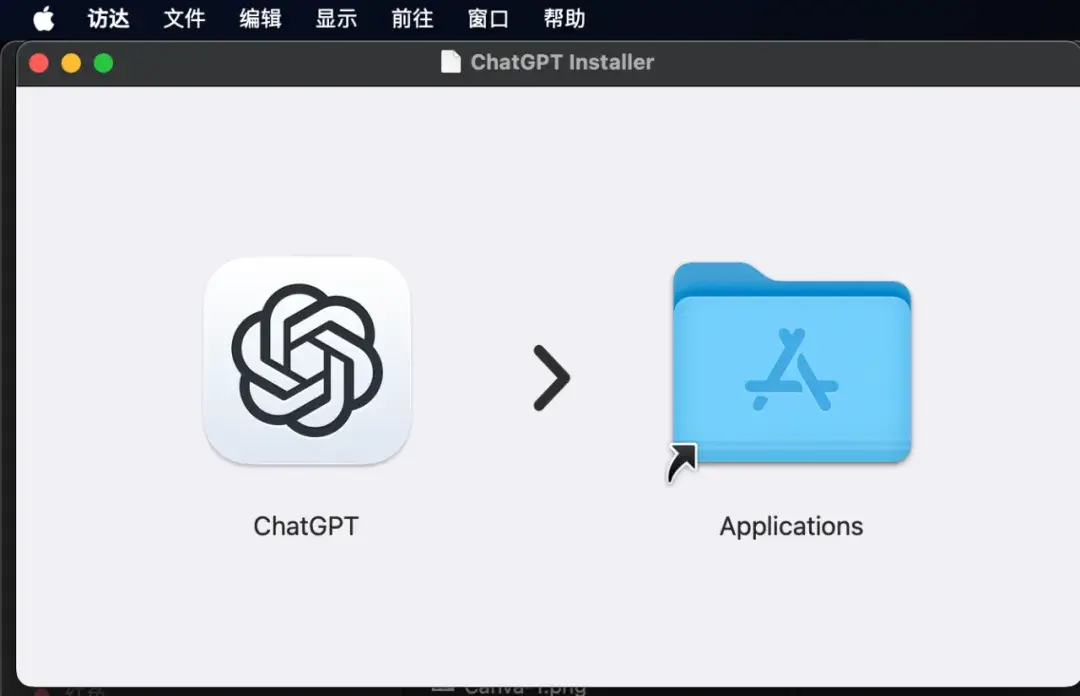
ChatGPT shipped a Mac desktop app a while back — I only just noticed, because the Mac App Store hasn't listed it. You can't even find it there… App Store, what can I say.
Step 1: Download the app
Download the macOS build from the official site:
- Open your browser and visit OpenAI (https://www.openai.com).
- Find "Download" or "Products" in the navigation.
- Grab the macOS installer.
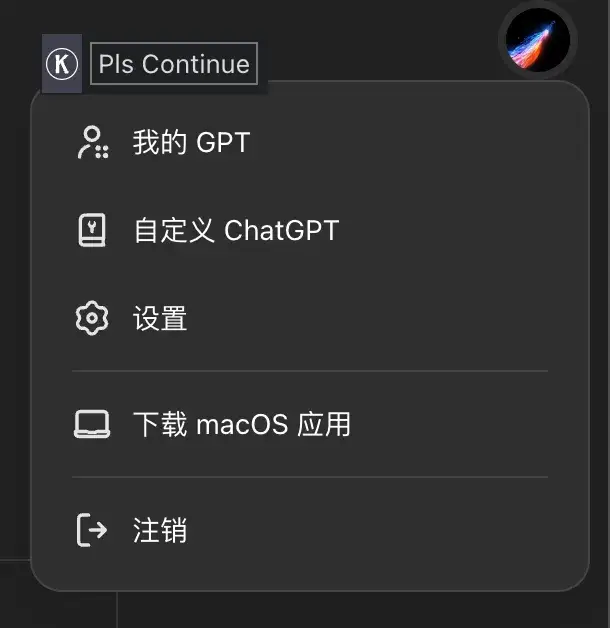
ChatGPT desktop download page
Windows users keep waiting. Mac requirements: macOS 14 and Apple Silicon (M1 or newer). As for the features — they're fine… ship first, improve later.
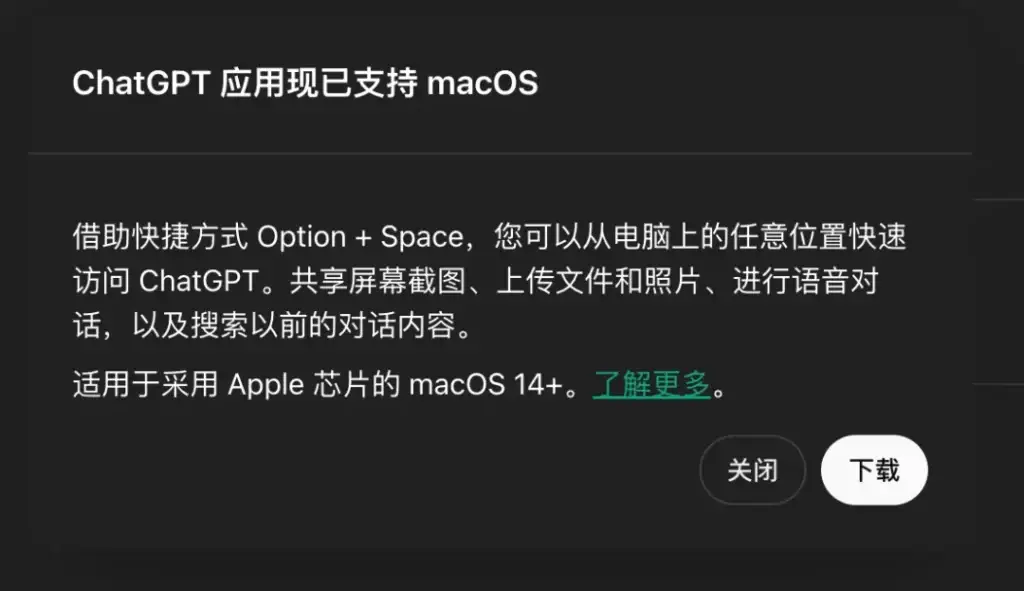
Supported versions for the desktop app
Step 2: Install
- Find the downloaded installer (usually in Downloads) and double-click.
- A window prompts you to drag ChatGPT into the Applications folder — do that.
- Open ChatGPT from Applications.
Step 3: First launch and login
- Double-click the app and wait for it to load.
- At the login screen, sign in with your OpenAI account, or register one first.
- Once in, you're ready to go.
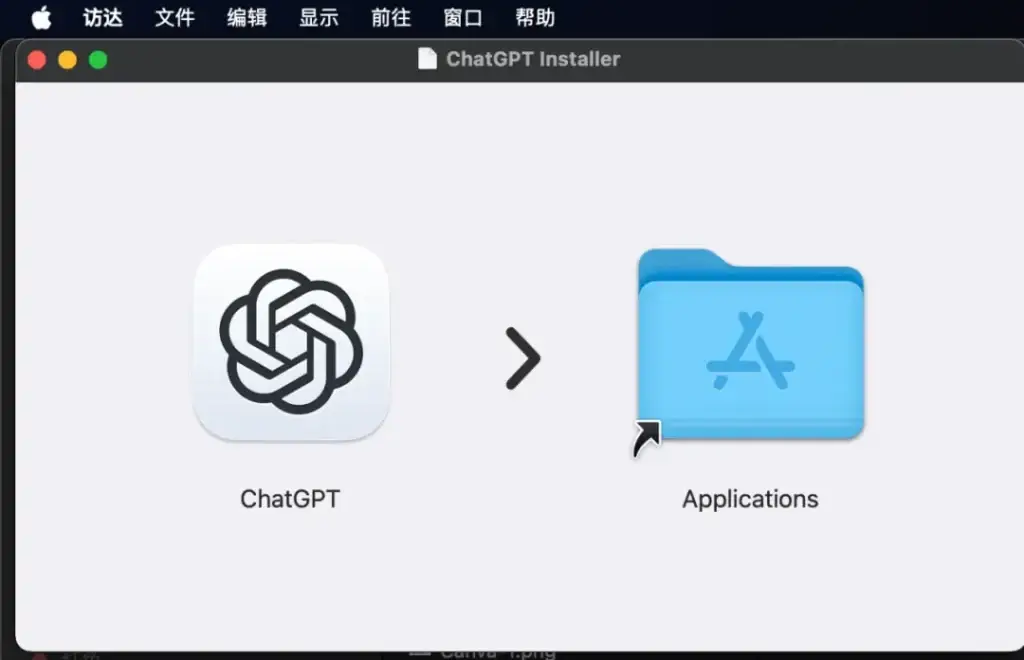
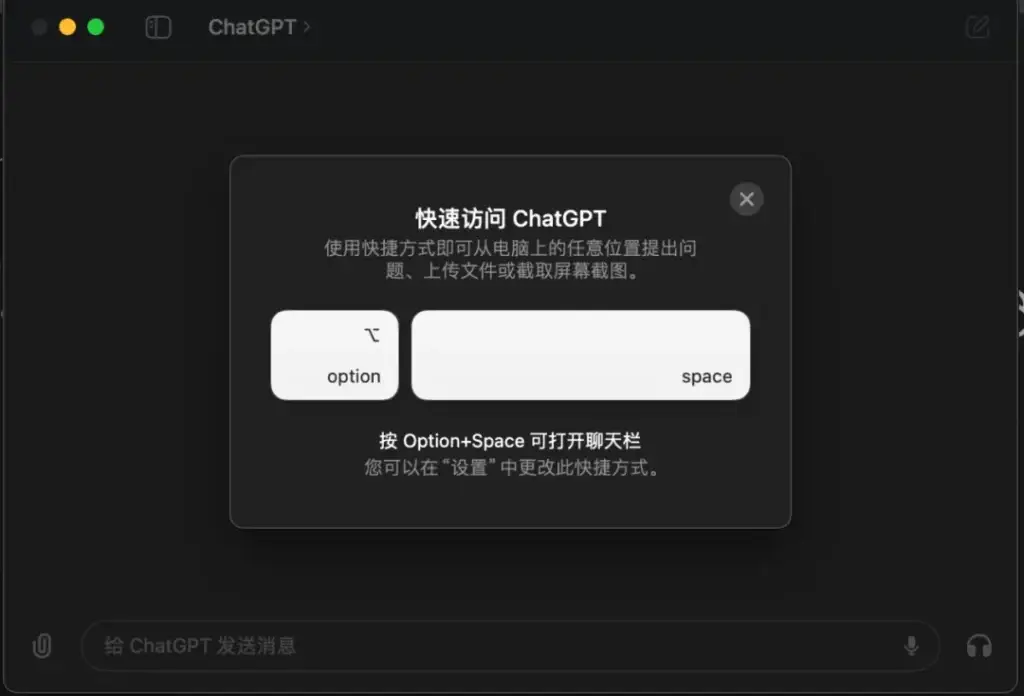
ChatGPT desktop
Step 4: Configure and use
Common settings after login: 1. Language: choose the interface and conversation language in Settings. 2. Theme: light or dark. 3. Features: toggle auto-saving conversations, voice input, and so on. Then put it to work — writing, Q&A, code generation, it handles all of it well.

Signing in to ChatGPT desktop
Good tool.
FAQ
1. The app won't open — what now?
macOS security settings may be blocking apps from unidentified sources:
- Open System Preferences.
- Go to Security & Privacy.
- Under General, click Allow for the OpenAI download.
Allowing ChatGPT desktop to run
2. How do I update the app?
Check for updates in the app's settings — new versions download and install automatically.

Using ChatGPT desktop