
How to Add DeepSeek to Cursor — Solved in 6 Steps
Nolan聊1 min readAI
DeepSeek V3 has been the recent standout in Chinese AI — a strong model with serious coding ability, and more importantly, extremely cheap. That's made it the go-to choice for many API workloads.

I've installed and tested it — here's how.
Steps to add DeepSeek to Cursor
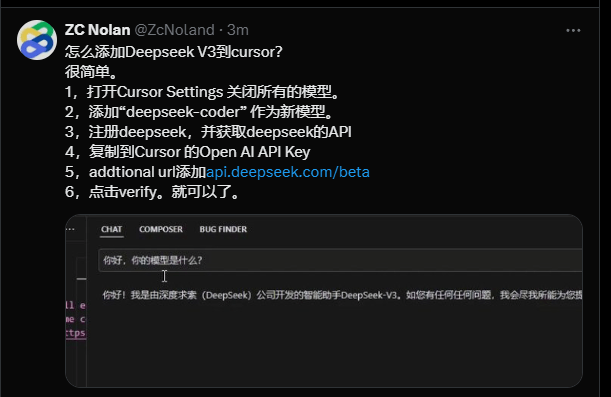
1. Open Cursor Settings and disable all models.
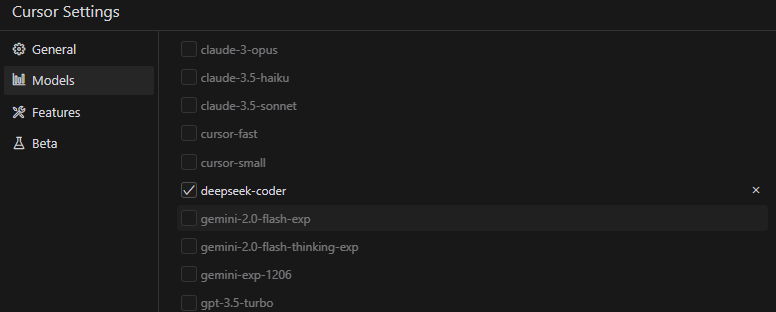
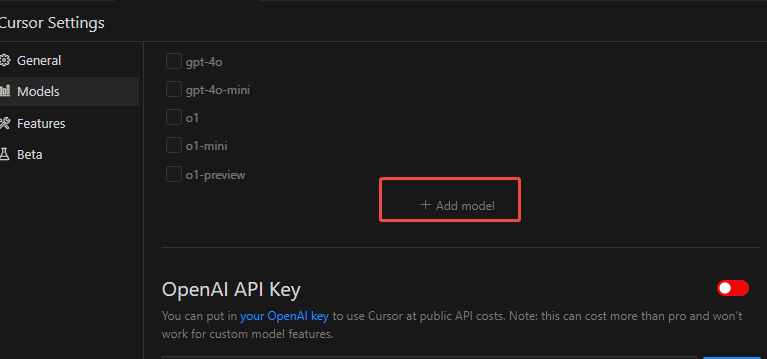
2. Add "deepseek-coder" as a new model.
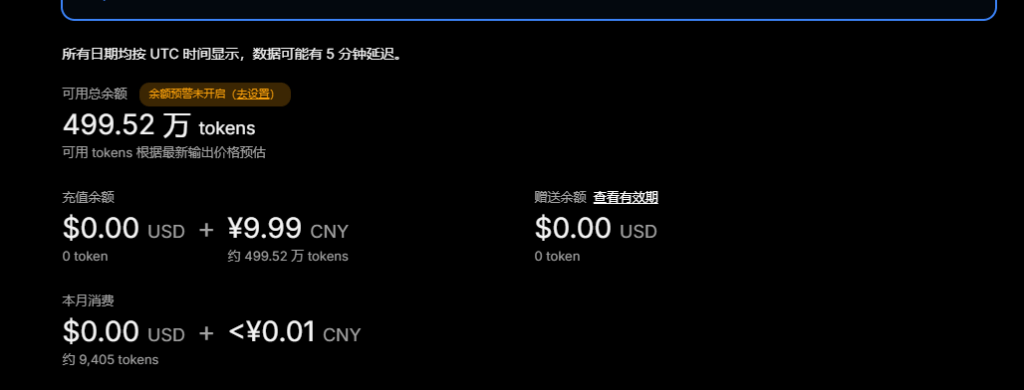
3. Register with DeepSeek and get an API key (top up your balance first).
4. Paste the key into Cursor's OpenAI API Key field.
5. Set the additional URL to "https://api.deepseek.com/beta".
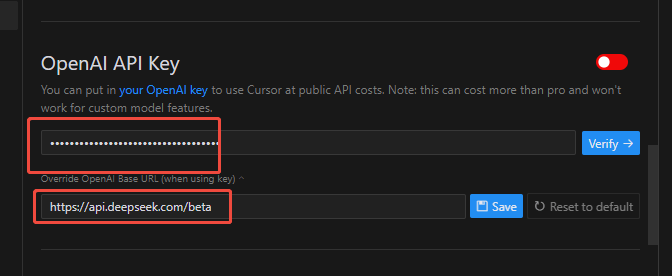
6. Click Verify. That's it.
I occasionally post quick tips like this on my Twitter — the link is at the top right of the page.
Hope this short one helps.
FAQ
- How do I add DeepSeek to Cursor?
- Six steps — open Cursor Settings and disable all models, add deepseek-coder as a new model, register with DeepSeek and get an API key (top up your balance first), paste it into Cursor's OpenAI API Key field, set the additional URL to https://api.deepseek.com/beta, then click Verify.
- Why use DeepSeek instead of Cursor's built-in models?
- DeepSeek V3 offers strong coding ability at an extremely low API price, making it the budget-friendly first choice for high-frequency AI coding.
- What do I need before adding DeepSeek to Cursor?
- Register a DeepSeek account, top up your balance, then create the API key — a key without funds will fail Cursor's Verify step.