
Shopify Login Guide: Quick Start and Security Tips

Logging in is step one of managing your store. Whether you're new or experienced, you should know how to sign in to your Shopify account and keep it secure. This article covers the login flow, password recovery, and account security best practices.
1. How to log in to Shopify
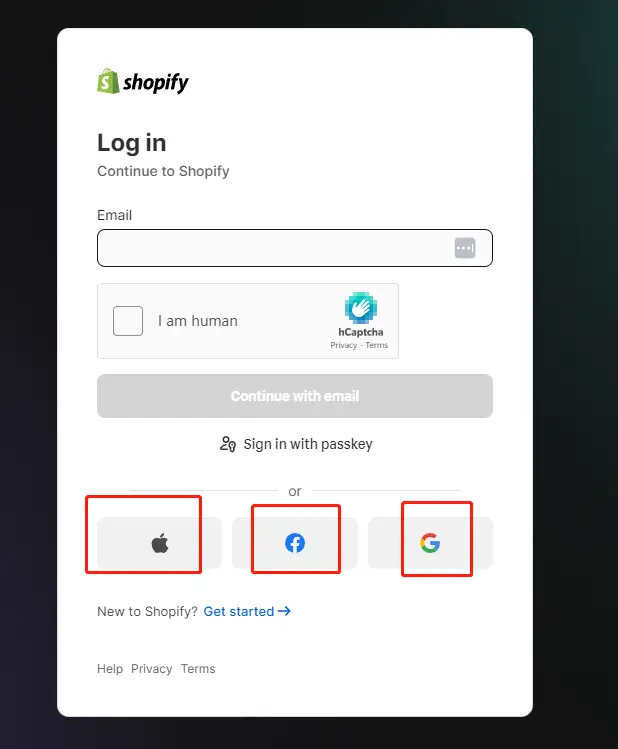
- Open your browser and go to www.shopify.com.
- Click Log in in the top-right corner.
- Enter your account email and password.
- Click Log in to reach the Shopify admin.
You can also sign in with Google or Facebook — just pick the icon on the login page.
But I recommend email + password. The moment you're on a different computer, or on a device where signing into Google or Facebook is inconvenient, social login leaves you stuck.
2. Recovering your password
If you forget your password:
- Click Forgot password on the login page.
- Enter the email address tied to the account.
- Click Reset password.
- Check your inbox for Shopify's reset link.
- Follow the link and set a new password.
You can recover via email or phone number.
Note: if you signed up through Google or Facebook, you can't change the password — you log in via OAuth authorization, so there's no password to reset.
3. Keeping the account secure
- Use a strong password: at least 8 characters mixing letters, numbers and symbols. Nothing guessable like "12345678" or "password".
- Enable two-step verification: require both password and a code via SMS or authenticator app.
- Rotate passwords: change it roughly every 3 months.
- Don't share credentials: only authorized staff should access the admin.
Shopify's account settings offer further security options. Skipping them is acceptable only if you're certain about your security hygiene.
4. Logging in on mobile with the Shopify app
You can manage the store from your phone:
- Download the Shopify app from the App Store or Google Play.
- Open it and enter your store name, email and password.
- Tap Log in to access the mobile admin.
The app handles orders, product edits and sales data anywhere — very handy.
Note: the store lists two apps. Download Shopify, not Shopify POS — the latter is for in-person checkout, only useful if you also run a physical shop.

Shopify for iOS:
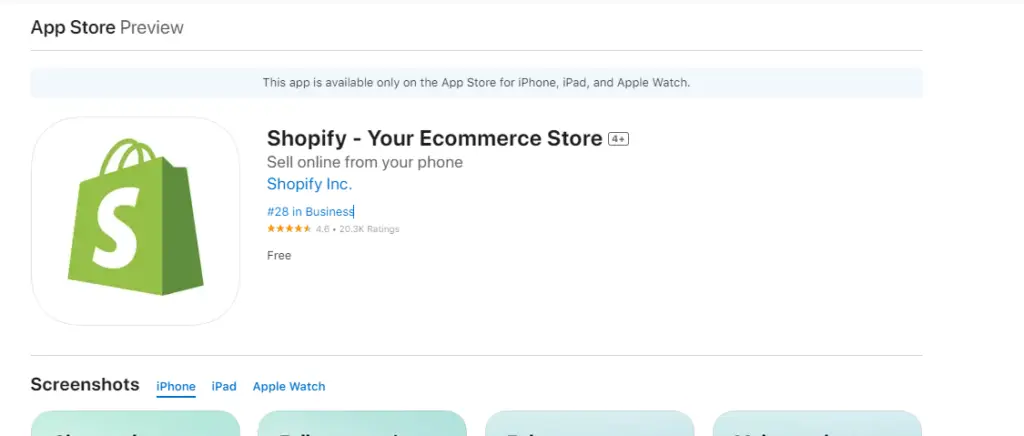

Scan the QR code above to download.

Shopify for Android:


Scan the QR code above to download.
Official download page: https://www.shopify.com/install
iOS: https://apps.apple.com/us/app/shopify-your-ecommerce-store/id371294472
Android: https://play.google.com/store/apps/details?id=com.shopify.mobile
Summary
Logging in is unavoidable — do it with email + password rather than the convenient-looking social login, which causes endless trouble later.
Protect the account: strong password, two-step verification, regular rotation, no shared credentials.
And use the mobile app to run the store from anywhere.
FAQ
- How do I log in to Shopify?
- Open www.shopify.com, click Log in at the top right, and enter your account email and password. Social logins via Google or Facebook work too, but email plus password is strongly recommended — you will not get stuck when switching devices or avoiding social logins.
- How do I recover a forgotten Shopify password?
- Click Forgot password on the login page, enter the email tied to the account, then open the reset link Shopify sends you and set a new password. Note that accounts using Google or Facebook authorization cannot reset a password this way.
- How do I keep a Shopify account secure?
- Use a strong password of at least eight characters mixing letters, numbers and symbols, turn on two-step verification, rotate the password every three months, and never share credentials — only authorized staff should access the admin.
- Which app do I use for Shopify on mobile?
- Download the Shopify App from the App Store or Google Play — not the Shopify POS App, which is for in-person checkout. Sign in with your store name, email and password to manage orders, products and sales data anywhere.