
Shopify Markets Shipping Explained: Why Aren't My Shipping Rates Applying?
"I set dedicated international shipping rates — why does checkout still show the old/general rates?"
If you're using Shopify Markets shipping to expand globally, that question probably hits home. Many sellers carefully configure rate strategies for specific countries (the US, Europe), then find the system ignores the new settings at checkout, stubbornly applying the rules from the general profile. Bad user experience — and potentially shipping sold at a loss.
Don't worry: it's not a bug. Behind it is a brand-new shipping priority logic that Shopify Markets introduced. As an SEO and e-commerce consultant who lives inside Shopify, let me untangle it for you once and for all.
Why? The Shopify Markets shipping priority, revealed
The core issue: Shopify Markets manages shipping completely differently from traditional Shipping Profiles. Sellers habitually go to Settings → Shipping and delivery, create a new international Shipping Profile, and add countries to it. Under the Markets system, that's wrong.
Remember this golden rule:
Once a country or region is added to one of your Markets and activated, shipping for every country in that market is taken over entirely by the shipping settings inside that Market. The general settings — and any Shipping Profile you built for it — are ignored.
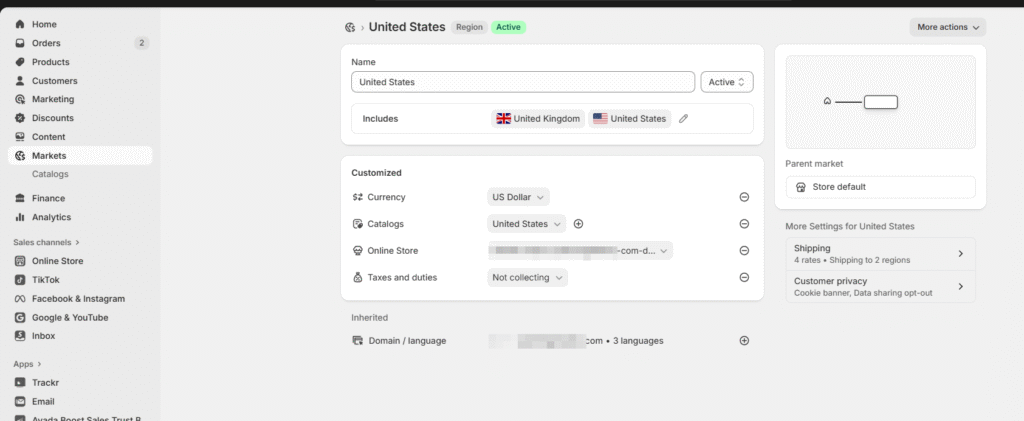
In short: Market shipping settings outrank Shipping and delivery settings. The system checks which Market the country belongs to, pulls that Market's internal rate table, and looks nowhere else.
The right way: hands-on Shopify Managed Markets shipping setup
With the logic understood, the correct path is clear: configure shipping inside the Market, not in Shipping and delivery.
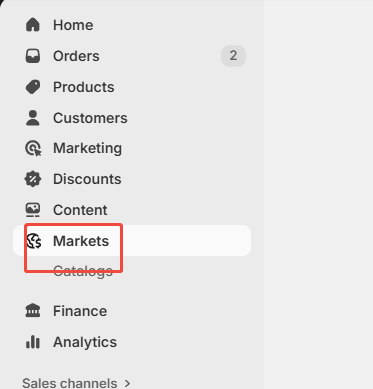
Step 1: Open the target market
From Shopify admin, go to Settings → Markets. You'll see all your markets — "International", "North America", etc. Click the one whose shipping you want to change (say, the Market containing all European countries).
Step 2: Find the Shipping card
On the market's settings page, scroll down to the Shipping card. This is the only correct entry point for managing rates for every country in this market. Click Manage.
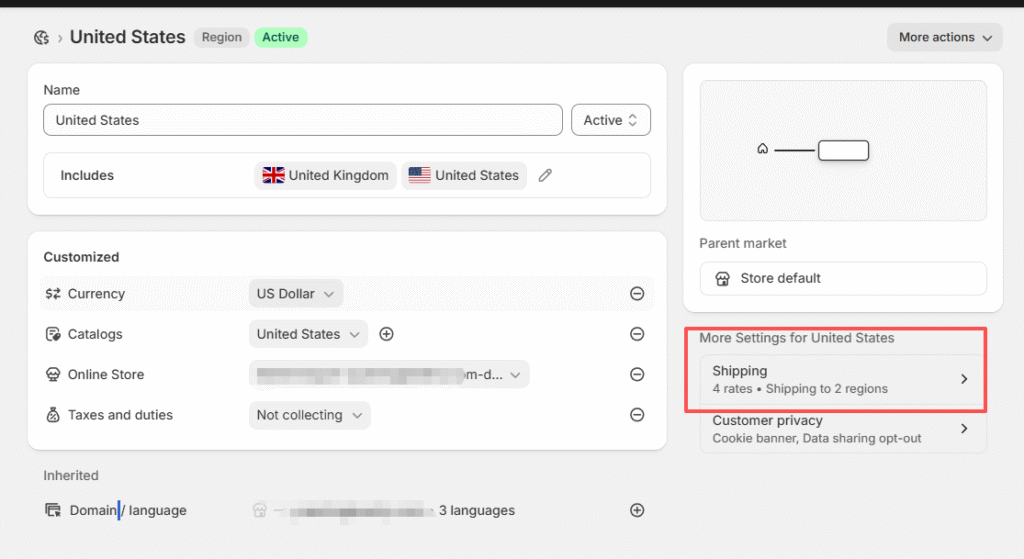
(Image: author's own store)
Step 3: Add or edit rate rules
Here you can build a fresh rate table for this market. Shopify lets you:
- Create from scratch: tiered rates by weight, price or item count.
- Reuse existing rules: copy the general profile's rates as a template, then adjust — a big time-saver.
Save, and checkout applies exactly the rates you configured for customers in those countries.
Pro tip: if your rates are genuinely complex — multi-dimensional calculations by postcode, product tag, weight — manual setup gets tedious and error-prone. Consider a dedicated shipping-rate app to automate it.
Pitfall guide: key points about Markets shipping
- Unlearn the old habit: once a country is in a Market, anything you configure for it in Shipping and delivery is wasted effort.
- The general profile's new role: still useful — it now covers your primary market (usually your home country) plus any country not added to any Market.
- Test relentlessly: after configuring, run a full checkout with an address from that market and confirm the rate displays correctly.
Misconceptions and FAQ
I created a new Shipping Profile for international countries and added them all — why doesn't it work?
Exactly the misconception this article corrects: those countries are managed by Shopify Markets, so the system uses the Market's internal rates and completely ignores any new Shipping Profile you create in Shipping and delivery.
Can I reuse my general rates inside Markets?
Yes. The Markets shipping UI offers "Use rates from general profile", which copies your general rules in as a base template you can then adjust. Very convenient.
What happens to a country's rates if I remove it from Markets?
Once no Market manages it, rate calculation automatically falls back to the profiles under Settings → Shipping and delivery.
Hope this clears every obstacle in your Markets shipping setup. Get the hierarchy right and your cross-border road smooths out considerably.
If you're ready to open a Shopify store, there's no better time — Black Friday is here, start now.
Not sure how? This article walks you through it.
FAQ
- Why are my international shipping rates being ignored?
- Once a country is added to an active Market, shipping for that country is taken over entirely by that market's own shipping settings — the general rates and any new Shipping Profile you create under Shipping and Delivery are ignored. Golden rule: Market shipping settings outrank Shipping and Delivery.
- Where exactly do I set shipping rates for Shopify Markets?
- The only correct path is Settings then Markets, open the target market, scroll to the Shipping card and click Manage. Build tiered rates from scratch by weight, price or item count, or copy your general profile rates as a starting template and adjust.
- Is the general shipping profile still useful?
- Yes — it now covers your primary market (usually your home country) and any country not assigned to a Market. Remove a country from a Market and its shipping automatically falls back to the general profile.
- How do I verify the market shipping setup?
- Place a full test order on the storefront with an address from a country in that market and confirm the checkout shows the right rate. For complex multi-factor rules based on postcodes, tags or weight, a dedicated shipping-rate app can automate it.