
Google Ads Guide: The Complete Shopify Advertising Tutorial (2024)
Google Ads is the marketing channel most independent stores can't avoid.
Compared with domestic Chinese ad platforms, Google Ads is harder — technically deeper and more demanding of the people who run it. But for Shopify and independent stores, it's practically unavoidable.
This article runs from what Google Ads is, through hands-on setup, to optimization advice.
What is Google Ads?
Google Ads — formerly Google AdWords. Most people first think of search ads: bidding on product keywords to win user inquiries.
For traditional B2B that's accurate. Before Shopping ads rose, "Google advertising" meant keyword selection and bidding. For B2C, though, with product counts so large, researching keywords per product or per line was unwieldy and labor-hungry.
Around 2018, computational advertising accelerated — automation and RTB arrived. When Shopping ads matured around 2019, B2C was fully liberated: media buyers could drastically cut keyword and creative research, redirecting energy to product and audience selection.
Through Google Ads you can display across YouTube, the Google Shopping channel, and the vast partner network — for brand building, inquiries, or direct sales. Deep pockets? Build your own app and drive installs via UAC. Automation has now entered the AI era: PMax lets most SMBs achieve quality ROI and broad reach with a skeleton advertising crew.
And Shopify has wired Google directly into its ecosystem, slashing the workload for store operators.
How does Google Ads work?
Google runs many formats; let's use the common search ad to illustrate. In the flow of information, users hunting for a product within the noise search for target keywords. Want an iPhone? You search "iPhone" on Google, Baidu or Bing. As a clever merchant you realize users search that keyword — and Google realizes there's money in it. So Google builds the bridge.
The problem: many merchants, one keyword, one screen of results. How do users get the best experience while merchants do too?
Auctions — Yahoo's idea, carried to glory by Google.
Merchants craft creative highly relevant to "iPhone" — landing pages, keywords, images, copy — which Google scores for relevance, ensuring a click on "iPhone" doesn't land on "Pineapple Phone".
Meanwhile, merchants bid on the keyword.
Most relevant to the keyword, at a suitable bid — that's the winner, earning more impressions.
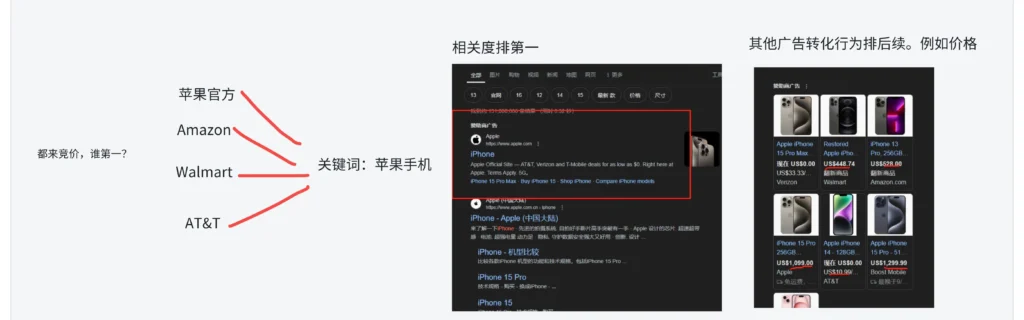
How Google Ads works
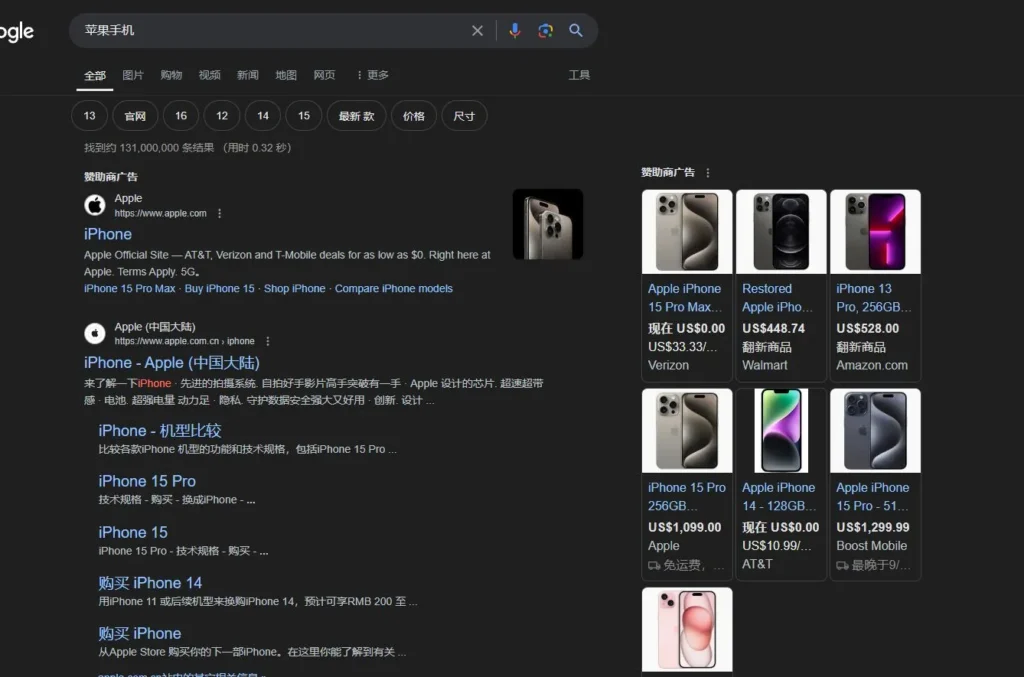
Google placements
Hence the steps every tutorial mentions:
Keyword research.
Human brains can't guess every keyword, so keyword-mining tools exist to surface what users actually search.
Ad creation.
Copy that attracts clicks; landing pages laid out to convert.
Bidding and display.
How much wins impressions and traffic? Where does it show, and how does it perform?
Optimizing on results.
From those questions fall the key metrics: impressions, clicks, conversions, CPC. Optimizing them for better ROI is the merchant's entire job in advertising.
What Google Ads brings to Shopify
The benefits aren't Shopify-exclusive — WordPress and custom sites gain equally. Google holds ~85%+ search market share, and the #2 search engine is YouTube. Both live inside Google Ads.
On those two enormous user bases, the audience is vast and the algorithms precise — you can find users worldwide to hit your sales goals.
Stable results, easy operation
Google Ads has existed since at least 2012. The console evolved from arcane complexity to near-foolproof simplicity.
Ease aside, what merchants care about is ROI itself. Having tried plenty of ad products, I can tell you: past the learning period, Google's monthly ROI is remarkably stable. Algorithm updates and Shopping ads give your conversion traffic precise reach.
Mature ecosystem, fast onboarding
Coming from self-built sites to Shopify, the contrast is stark. Self-built means embedding code yourself, defining events yourself, no official support, English documentation only — genuinely painful.
Now, open an account through an ad agency and everything code-related gets one-on-one follow-up, with periodic optimization tips to speed you through the beginner phase.
If official service is that good, consider that Shopify apps insert the code and sync product data to Google in one click. Install one app and preparation is done — that's technological progress.
Rapid project validation
Thanks to the above, within the world's largest ad market — official support plus Shopify's tooling — you can complete store setup and ad setup in very little time, validating in weeks whether the market wants your product and whether to double down.
That's the most important information a merchant can have — traditional SEO or social traffic takes far too much time and energy to deliver it.
Google ad types
Google's ecosystem offers many ad products for different merchants. Since this guide targets Shopify cross-border sellers, here are the 3 common types — for depth, see The 4 Google Ad Types.
Search ads
As the name says: users search a keyword, you bid on it for traffic. Crucial in Google's ecosystem — people willing to spend effort typing a query carry high intent and convert visibly better.
Display ads
Image ads and video ads. Sites plastered with ads across Google's partner network — that's the Display Network; the mid-roll ads you see on YouTube without Premium — those are video ads.
Shopping ads
Two kinds: listings under Google's Shopping tab triggered by keyword searches, and PMax — the newer type blending the Shopping channel with most Google surface area, converting through varied product presentations.
Summary: all three have merchants who've mastered them and made serious money. As a beginner, weight your budget toward Search and Shopping — purchase intent is clearer there, and they test product-market fit faster.
Common Google Ads terminology
A quick literacy pass; the rest lives in Google's help docs.
Impression — times your ad was seen.
Click — times your ad was clicked.
Conversion — the desired post-click action: purchase, form fill, etc.
Cost — actual ad spend.
Intermediate:
CPC (Cost Per Click) — what one click costs.
CPM (Cost Per Thousand Impressions) — what a thousand impressions cost.
CTR (Click-Through Rate) — clicks ÷ impressions; how compelling the ad is.
CPA (Cost Per Acquisition/Action) — what one conversion costs.
ROAS (Return on Ad Spend) — revenue ÷ ad cost.
Others exist — look them up as needed; these five basically suffice.
Creative-related:
Landing Page — the optimized page users reach after clicking.
Keywords — the words and phrases that trigger your ads.
Broad Match — shows for searches containing anything related to the keyword.
Phrase Match — shows only when the search contains the exact phrase.
Exact Match — shows only on exact keyword matches.
Negative Keywords — exclusions preventing irrelevant impressions.
Ad Extensions — extra info attached to ads: phone numbers, links.
Quality Score — Google's rating of relevance, expected CTR and experience; higher is better.
Ad Rank — position determined by Quality Score and bid.
Structure-related:
Campaign — a set of ad groups oriented to one goal: branding, sales.
Ad Group — a grouping of related ads and keywords for manageable optimization.
Ad — the unit containing copy, images, links, extensions, contact info.
Bidding-related: Bid Strategy — how you bid: manual, target CPC, target ROAS…
Target CPA — set your desired conversion cost; Google auto-adjusts bids toward it.
Target ROAS — set your desired return ratio; Google auto-adjusts bids toward it.
Enhanced CPC (ECPC) — manual bids fine-tuned by conversion probability.
Smart Bidding — Google's ML-driven auto-bidding maximizing conversions or value. These are entry-level, but dense — revisit them alongside Google's help center to understand the technology and algorithm behind each.
Why bother? Master Google's system and learning other platforms — Facebook, TikTok — becomes far easier.
How to run Google Ads on Shopify
Any independent store needs 4 steps:
-
Open an ad account and fund it;
-
Insert Google's ad code into the site;
-
Verify the code;
-
Launch.
On Shopify, each step has shortcuts.
Open an account and fund it
Two routes. I don't currently recommend personal accounts — risk control is strict, personal accounts get banned easily, and buying accounts costs money. Tutorial later if needed.
With a business license, talk to Google ad agencies directly — preferably official partners like AdTiger, Mobvista, or Meetsocial.
Between the two, I recommend the agency route: with most people operating from China, having an intermediary for top-ups, code integration and bug support solves many problems — otherwise you're emailing Google support ticket by ticket.
Insert the ad code
Two kinds: the global tag and event tags.
The global tag tells Google your site exists.
Event tags are more interesting — worth separating because B2B customers need form-fill goals, unlike B2C where conversion means purchase. Diverse goals forced the split, fitting different scenarios.
Both are solved one-click by installing the Shopify app. Note: you must first have the ad account from your agency, which requires a Gmail — that Gmail threads through the entire Google Ads ecosystem, so guard the credentials carefully.
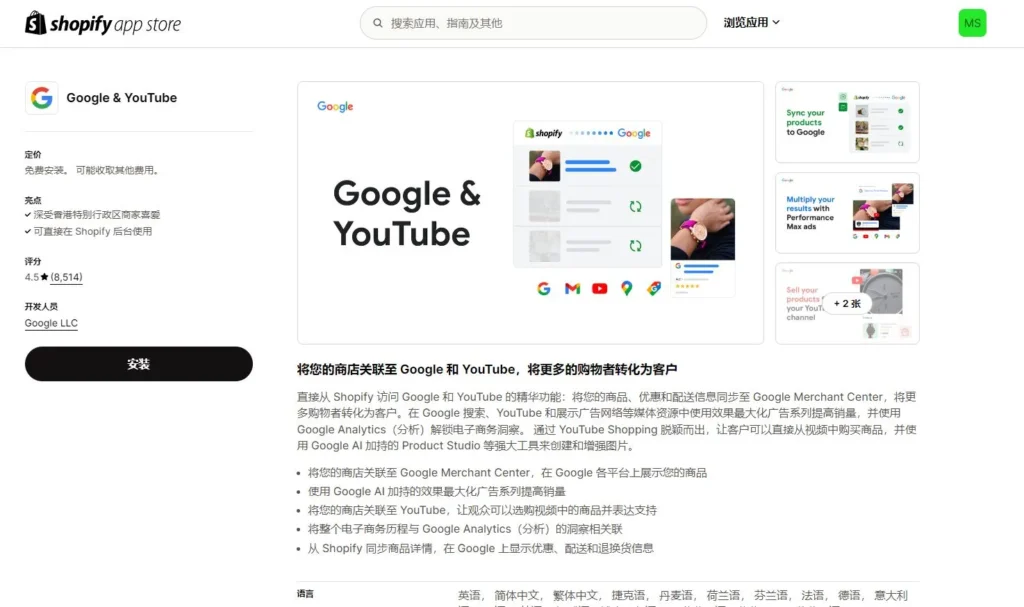
Google & YouTube Shopify App
Verify the code
Several ways exist. My strong, strong recommendation is the absurdly easy one: Google's human support.
Open service through an agency and they'll coordinate with Google to fix your tracking. Once installed, ask the agency to book Google service — a Google human calls you and handles it remotely. Simple.
Prefer self-service? Verify with Google Tag Assistant — find it in the Chrome store or just search.
Install, click enable, refresh your site: if every tag fires, installation succeeded.
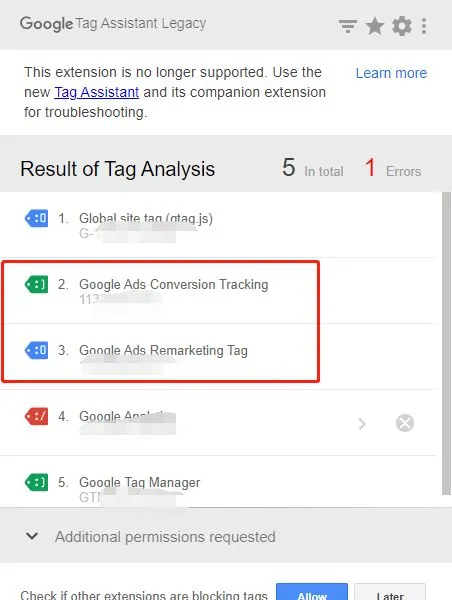
Google Tag Assistant
With that done, advertise with confidence — behavior data is tracked correctly.
Launching
Google's console updates fast and each ad type configures differently, so no screenshots here — for detailed steps see the display campaign walkthrough.
The skeleton:
-
Prepare copy, URLs, images, video.
-
Build the campaign structure, naming conventions and tracking to match the goal.
-
Set up tracking and stop-loss thresholds.
And operate inside Google Ads itself — third-party consoles invite bugs that spend your money without results, or trap campaigns that can't migrate.
Basic tips and strategy
Once you're spending on Shopify — congratulations, that's step one, however big or small. Whether the step landed right requires judgment.
First: launching doesn't guarantee orders. From 0 to 1, the priority is proving the pipeline — validating the project and the product.
Many assume ads mean orders, lack any process control after launch, can't locate what broke, and simply bleed cash. That's insufficient understanding of advertising.
Orders are the end goal; decompose the journey into metrics and work toward it.
First: did the ads even serve?
Early on you'll hit ads that won't serve — while some poor soul sits waiting for orders from ads that never ran.
Typical causes, three classics:
A. You didn't fund the account.
B. Keywords too long-tail or obscure — nobody searches them.
C. Bids too low to win the auction.
Rule those out and it's probably the algorithm warming up — give the machine 1–2 days.
Optimize the site pages
Don't rush to optimize ads — inspect on-site data first. In Shopify analytics, check traffic sources: which pages users land on (product page or home), dwell time, add-to-carts, favorites, checkout rate, page depth — all against normal ranges.
What's abnormal? Dwell times of seconds — or under 30 — or bounce rates of 70%, 80%, 100%. That's a page problem: pause the ads, fix the page, relaunch.
Set a stop-loss
With ad data and site data healthy, you wait for the first order.
You don't know when it comes. $100 in? $500? If your product sells for $20, past some threshold you cut losses — swap creative, change formats, adjust audiences, chase lower CPA.
You're here to make money, not donate it.
Record data, track iterations
With the steps above clear, you understand: every optimization exists to make the click-to-site journey comfortable, lowering conversion cost.
The adjustable surface is huge: layout, image sizes, load speed, detail-page content, copy, trust badges, payment icons, site services, offers, pricing, discounts, popups, creative, geo, age, audience…
Independent stores are complex, tiring work. Alongside patience, keep documentation — record each adjustment's reasoning, target and goal. Review the metric shifts on a 3–7-day cycle.
Then you know what works and what doesn't.
Exhausting? Trust me, it's the fastest way. If you're in this long-term, this test data threads through your whole career — next project, you'll know with far more confidence what actually matters.
How to optimize display, shopping and PMax
How long until the first order?
Depends on you and the product. At a $3,000 AOV, first-month orders happen — rarely. Few people can pay that much, and purchases that size usually go on installment; if your site lacks card payment or Afterpay-style plans, no amount of spend may produce an order. The point: beginners shouldn't make orders the primary early goal — you'll just marinate in anxiety. Reasons for zero orders are many; find yours in the user journey.
Why isn't my ad showing?
As covered, zero-impression situations are real. Ad quality, algorithms, budget — even a dead account — all possible. Check first: keyword search volume and bids. Try low budget + high bid to jolt the algorithm. Still nothing? Have your agency test the account.
My account got suspended — what now?
Personal accounts get banned often. Agency accounts rarely do, unless your violations are spectacular — bots, scripts, abnormal delivery (in which case, respect). When banned or suspended, let the agency handle it. If it was Google's error, a fresh account shouldn't re-ban; if bans continue, your site itself may be the problem — a weird server, abnormal products… and that's no longer a Shopify-built store anyway.
Which ad type is best?
Products differ wildly, and "best" mostly means more sales or higher ROI. Standardized products tend to shine in Search and Shopping; non-standardized goods like apparel are harder to place on Google. As always: let testing decide.
FAQ
- What is the basic workflow for running Google Ads on Shopify?
- A four-step frame — define the ad goal; prepare copy, URLs, images and video; build the campaign structure, naming rules and tracking code around that goal; then set up data tracking with a stop-loss threshold. Operate only inside the official Google Ads platform — third-party tools invite bugs that burn budget and lock you in.
- Why are my Google ads not showing or spending?
- Three classic causes — no funds in the account, keywords too long-tail or obscure to be searched, or bids too low to win the auction. Once ruled out, it is usually the algorithm warming up: wait a day or two, or nudge it with a low budget and high bid. If it still will not spend, have an agency test the account.
- How long until Google Ads bring the first Shopify order?
- It varies wildly by seller and product — do not make the first order your primary goal. From zero to one, the job is proving the funnel: confirm the ads spend, then read on-site data — dwell time, bounce rate, add-to-carts, checkout rate. A bounce rate of 70-80% means pause the ads and fix the page first. Set a stop-loss and, past it, rotate creatives, ad formats or audiences.
- What if my Google Ads account gets suspended?
- Personal accounts get banned often; agency accounts rarely do unless you pull something egregious like bot-driven delivery. When it happens, let the agency handle it. If fresh accounts keep getting banned, the problem is probably your site itself — an odd server setup or problematic products.
- Which Google ad type performs best?
- It depends heavily on the product — most commodity items do best in Search and Shopping ads, while non-standard goods like apparel are harder to place. Testing decides, always.